Use Lock Screen Widgets
Lock Screen widgets are much smaller than Home Screen widgets. They work best when they show one clear thing: a status, a number, a symbol, or a short label.
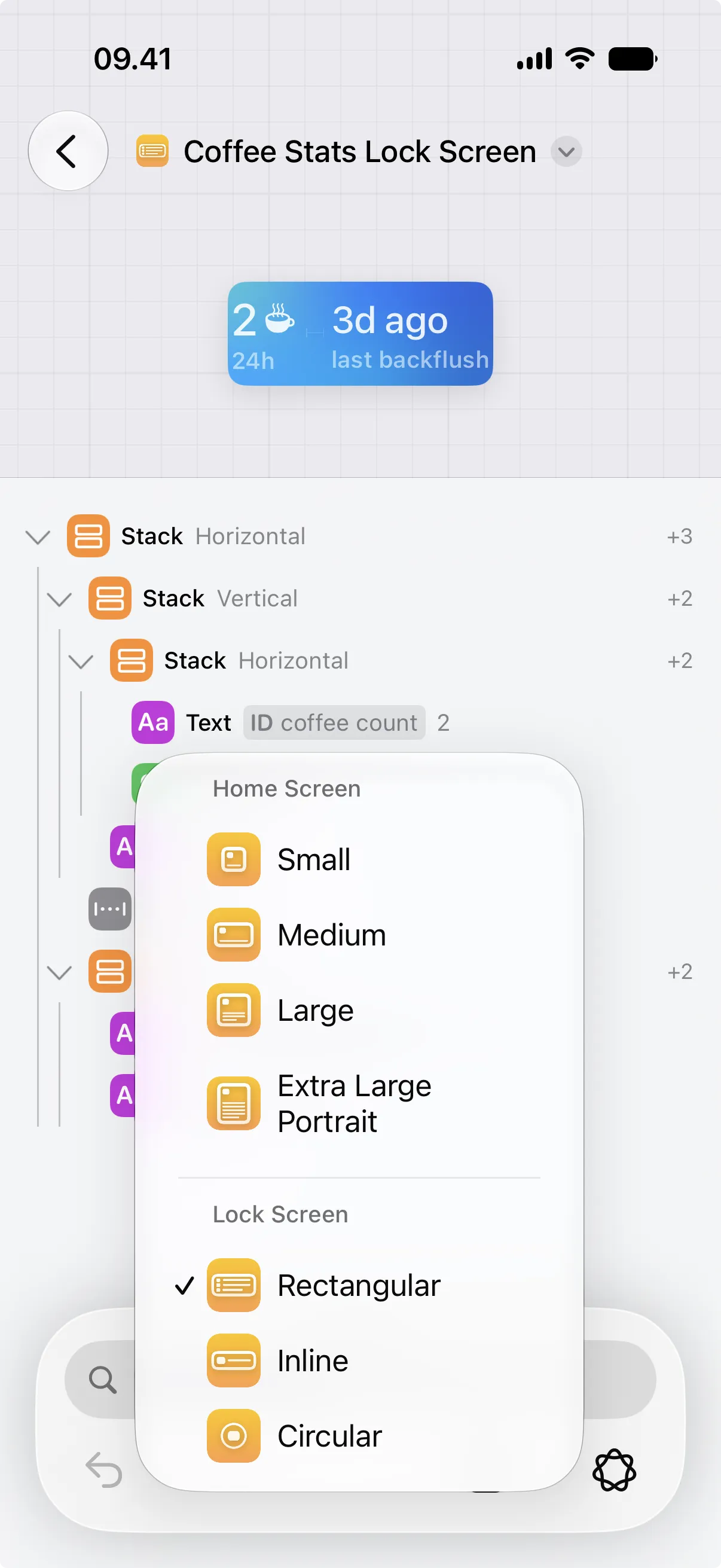
Canvases supports three types of Lock Screen widgets: Circular, Rectangular, and Inline. Each type has its own size and limits, so design the canvas for the type you plan to use.
Choose the Matching Size
Section titled “Choose the Matching Size”Create the canvas with the same size you plan to add to the Lock Screen. Then place it in the matching widget type: Circular and Rectangular widgets sit below the clock, while an Inline widget appears at the top of the screen, above or next to the clock.
If the canvas size and widget size do not match, the widget cannot show that canvas. Edit the widget and choose a canvas made for the same size.
Circular
Section titled “Circular”Use a Circular widget for one symbol, one short number, or a simple progress ring.
Avoid long text. Even a short word can be hard to read in a circle. If you need a label and a value, Rectangular is usually a better choice.
Rectangular
Section titled “Rectangular”Rectangular widgets have room for a short label and one or two compact values. They are good for status text, countdowns, small progress bars, and simple rows.
Keep the layout simple. A rectangular Lock Screen widget is still much smaller than a small Home Screen widget, so charts, photos, and dense dashboards usually become hard to read.
Inline
Section titled “Inline”Inline widgets are rendered specially and do not show the whole canvas layout. iOS limits an inline widget to a single line with one piece of text and one symbol or image, shown near the Lock Screen clock. The Canvases preview enforces the same limit, so it shows only the first text and the first symbol or image it finds in the canvas.
Views beyond that first text and first symbol or image are stripped away, and styling such as backgrounds, borders, padding, and colors is omitted.
Colors and Backgrounds
Section titled “Colors and Backgrounds”Lock Screen widgets are transparent and adopt a vibrant color treatment for their content, so custom colors and detailed backgrounds are not shown as designed.
The Canvases preview renders Lock Screen widgets on a placeholder background so you can check contrast. That background is only a preview aid and is omitted when the widget is placed on the Lock Screen.