Troubleshooting
This page covers common issues and ways to resolve them.
Widget Does Not Update Right Away
Section titled “Widget Does Not Update Right Away”A Canvases widget does not update on its own. It changes when something updates the canvas, such as a shortcut.
After that, iOS, iPadOS, and macOS control when a widget can refresh on screen. Apple allows widgets to update only roughly every 15 to 60 minutes.
The exact timing varies with how often you view the widget, the resources available on your device, and whether Low Power Mode is on. This is a system limitation enforced by Apple, so no app can make a widget refresh faster.
If a widget looks out of date:
- Open Canvases and confirm the canvas itself changed. If it did not, the update did not reach the canvas.
- Check that the view you are updating still has the same ID. A shortcut that updates a view needs the ID to stay the same.
- Turn off Low Power Mode, which limits how often widgets can refresh.
- Charge the device, since the system refreshes widgets more often when it is not conserving battery.
- Open the widget or the Canvases app, since widgets you view often tend to refresh more frequently.
- Wait a little while, then check the widget again.
Views Created From Templates Do Not Look Right
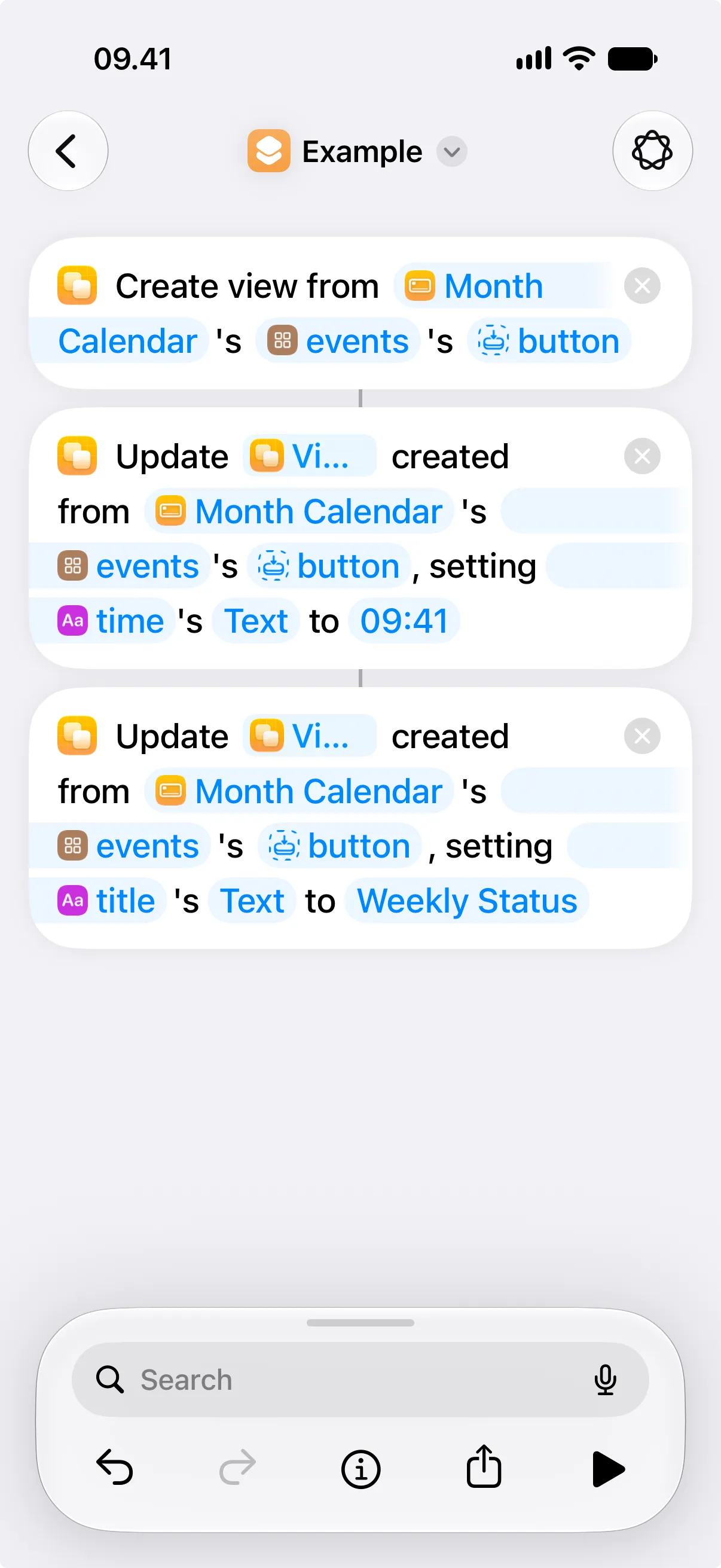
Section titled “Views Created From Templates Do Not Look Right”When you use Create View from Template with Update View Created from Template, the created view must be passed to each update action in order.
Check the Created View parameter on each Update View Created from Template action:
- The first Update View Created from Template action should use the result from Create View from Template.
- The next Update View Created from Template action should use the result from the first Update View Created from Template action.
- Each later Update View Created from Template action should use the result from the previous Update View Created from Template action.
If an update action uses an earlier result instead, it may update an older version of the created view. Later changes can replace or lose earlier changes, and the resulting grid children may not look as expected. Go through the shortcut actions and make sure each Created View parameter uses the result from the step immediately before it.
Widget Shows the Wrong Canvas or Size
Section titled “Widget Shows the Wrong Canvas or Size”A widget only shows a canvas made for its size. If the widget looks empty or clipped, edit the widget and choose a canvas made for that widget size. See Add a Canvas as a Widget.