
Update a Canvas from Shortcuts
Use Shortcuts when a canvas should change based on data outside the Canvases editor. A shortcut can update a specific view by selecting a canvas, selecting a view ID, and setting the property you want to change.
The view ID connects Canvases and Shortcuts. In Canvases, you give a view an ID. In Shortcuts, you use that same ID with Update View.
For example, a water widget might show a water amount and a progress ring. If the label has the ID waterConsumed,
Shortcuts can use Update View with waterConsumed to change only that
label. Other views in the same canvas are left alone.
Assign an ID to a View
Section titled “Assign an ID to a View”An ID connects a view in Canvases to the Update View action in Shortcuts. Give each view you plan to update its own ID.
- Open the canvas in Canvases.
- Select the view you want to update.
- Give it a stable ID in the inspector.
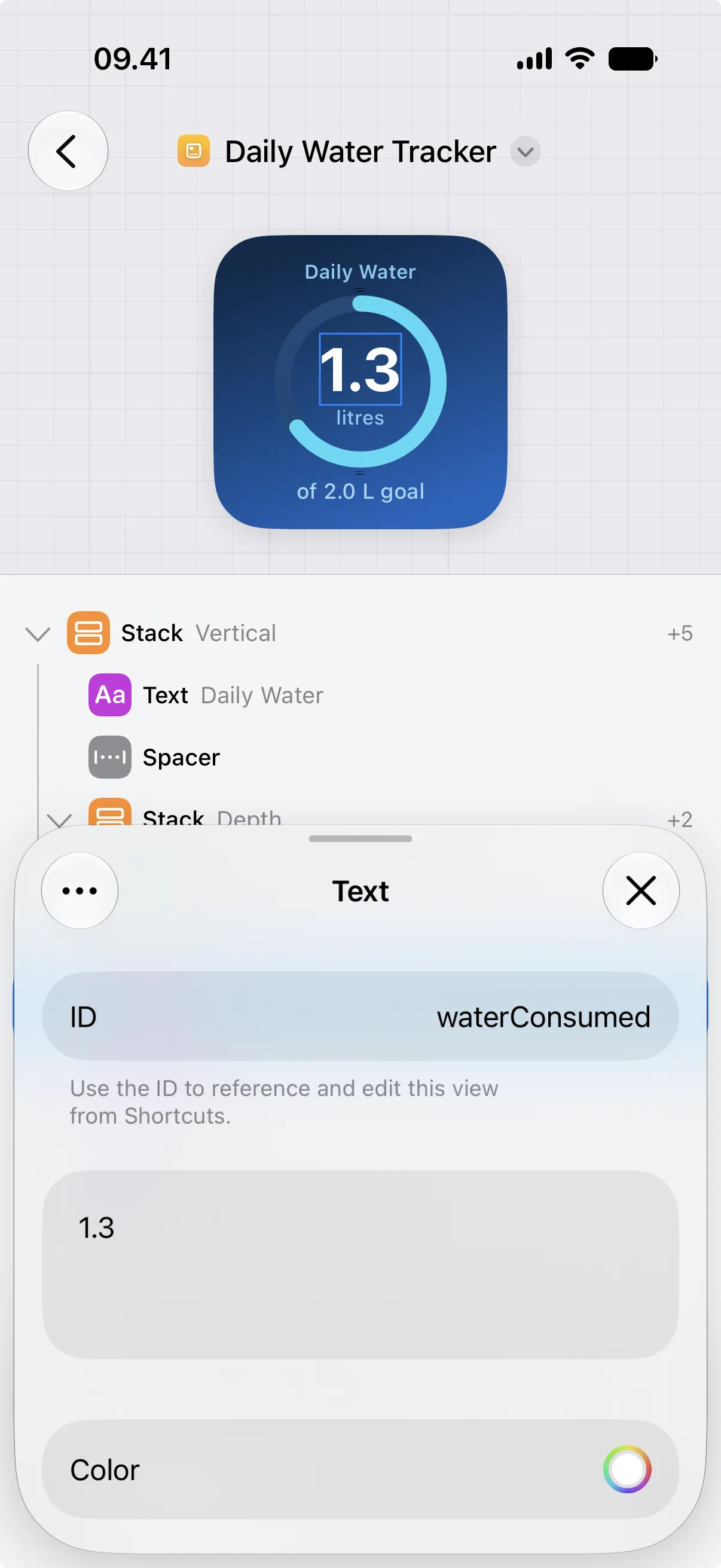
Use IDs that describe the purpose of the view, not its current value. For example, waterProgress, waterConsumed, and
glassesToday are easier to understand later than names like text1 or blueLabel.
If a shortcut depends on an ID, keep that ID stable in Canvases. Changing the ID means the shortcut needs to be updated too.
Basic Workflow
Section titled “Basic Workflow”Once your views have IDs, build the shortcut that updates them. The Update View action does the work: it points at a canvas, finds a view by its ID, and changes one property on it.
- Open Shortcuts and create a new shortcut.
- Add the Canvases action named Update View.
- Choose the canvas you want to update.
- Enter or select the view ID.
- Choose the property you want to change, such as Text or Progress.
- Fill in the new value for that property.
- Leave unrelated values blank so they stay unchanged.
- Run the shortcut and check the canvas.
Example: Update the water amount
Section titled “Example: Update the water amount”Use this pattern for status labels, timestamps, counters, and summaries.
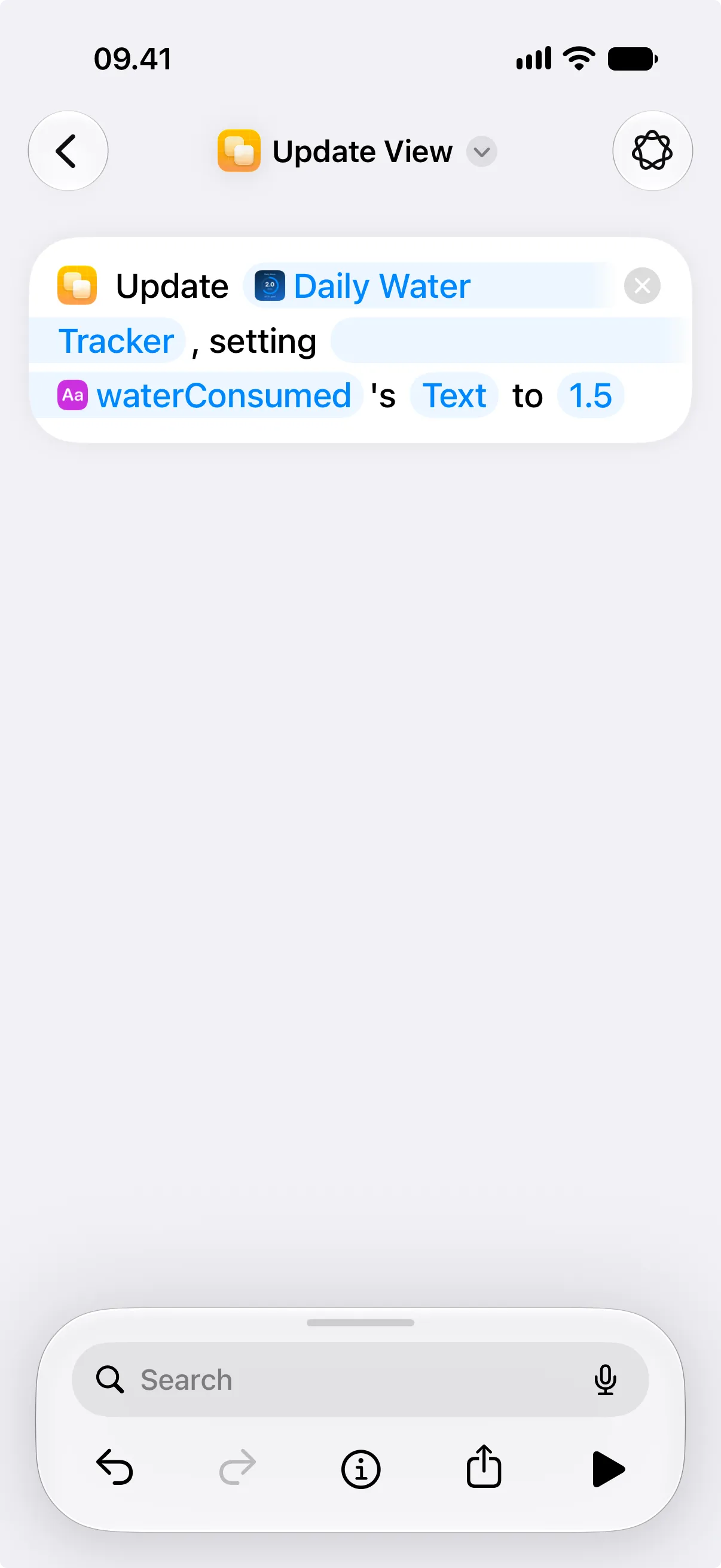
- In Canvases, select the text view that shows the amount.
- Set its ID to
waterConsumed. - In Shortcuts, add Update View.
- Choose the canvas.
- Set the view ID to
waterConsumed. - Set Property to Text.
- Set Text to the new amount, such as 1.5.
Example: Update the water progress
Section titled “Example: Update the water progress”Use this pattern for goals, levels, completion states, and measurements.
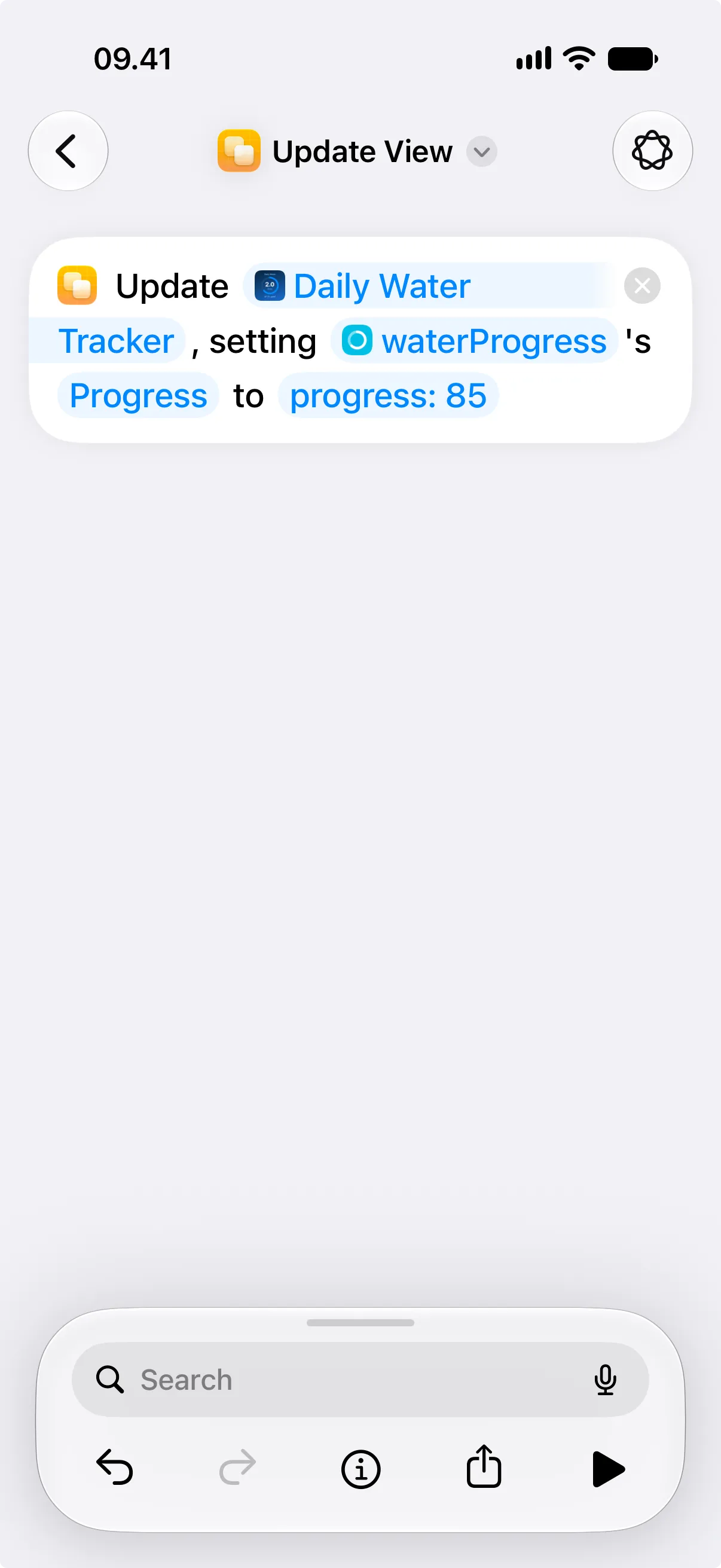
- In Canvases, select the progress view.
- Set its ID to
waterProgress. - In Shortcuts, add Update View.
- Choose the canvas.
- Set the view ID to
waterProgress. - Set Property to Progress.
- Set Progress to a number from 0 to 100, such as 85.
Use the 0 to 100 range shown in the Canvases editor. Do not use a normalized value from 0 to 1. For example, use 60 for 60%, not 0.6.
Keep Updates Focused
Section titled “Keep Updates Focused”Update View changes one property on one view. If a shortcut needs to update several parts of a canvas, add one Update View action for each change.