
Automate Canvas Updates
Shortcuts automations can update a canvas for you without opening Canvases. Because a widget shows a canvas, updating the canvas also updates the widget.
You can run an automation at specific times of day, when you arrive at or leave a location, when you receive a message from a certain contact, when a Focus turns on, and much more. Whenever the automation runs, it can update your canvas with fresh data.
For example, an automation can:
- refresh a weather forecast at a few set times during the day.
- update a canvas when you receive a specific notification.
- change a widget when you arrive home.
- update a status when you switch Focus.
Example: Update Every Morning
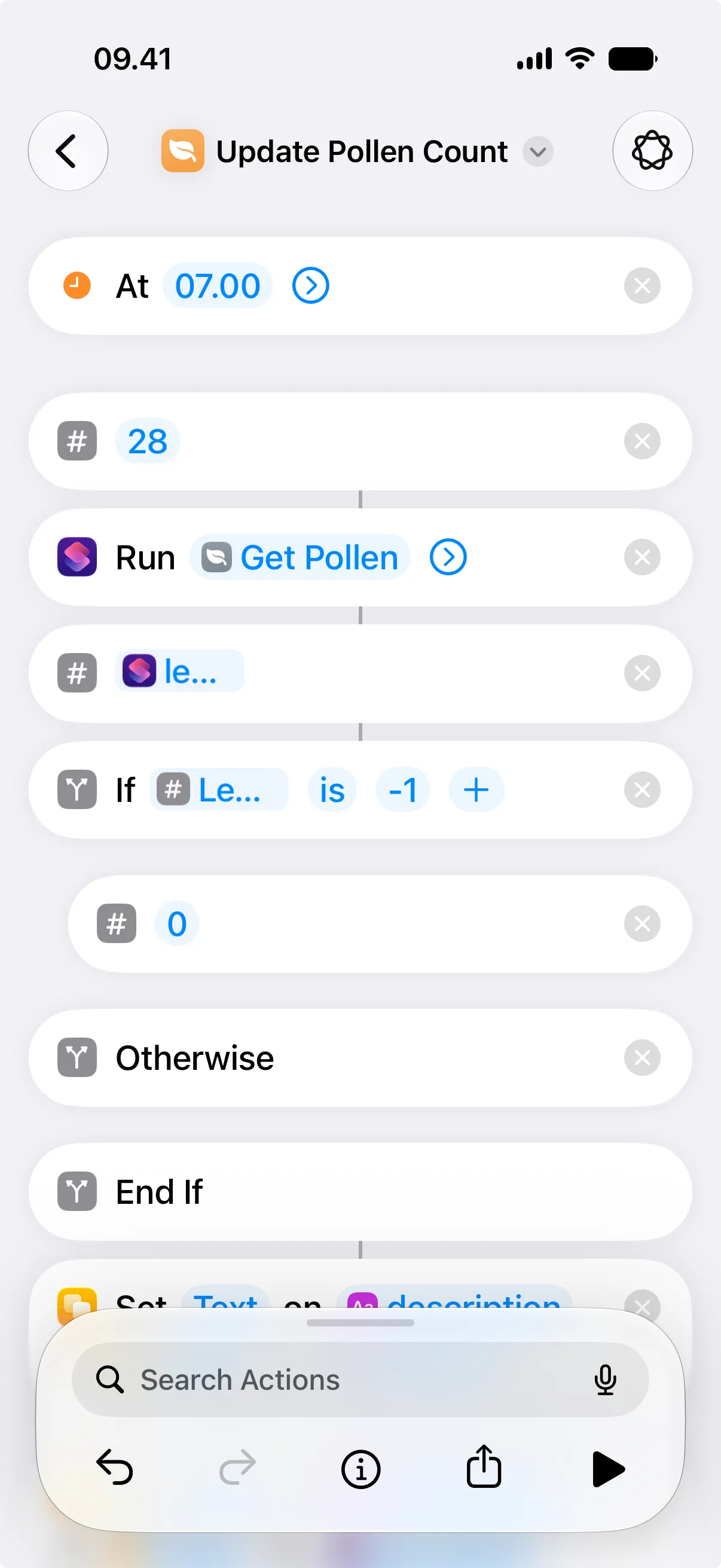
Section titled “Example: Update Every Morning”This example updates a pollen count canvas every morning at 07:00. The automation runs a shortcut that uses Update View to change the value.
- In Canvases, give the pollen view a stable ID, such as
pollen-count. - Create a shortcut that gets the latest pollen count and updates the view with Update View.
- In Shortcuts, create a new automation.
- Choose Time of Day as the trigger and set it to 07:00.
- Choose to run the shortcut, and turn off Ask Before Running so it runs on its own.
When the Widget Updates
Section titled “When the Widget Updates”An automation updates the canvas right away, but the widget on your Home Screen or Lock Screen may not refresh at the same moment. The system reloads widgets within a budget that depends on how often you view the widget, the resources available, and whether Low Power Mode is on. In practice, a widget can update roughly every 15 to 60 minutes.
For more detail, see When the widget does not update right away.