Run a Shortcut from a Widget Button
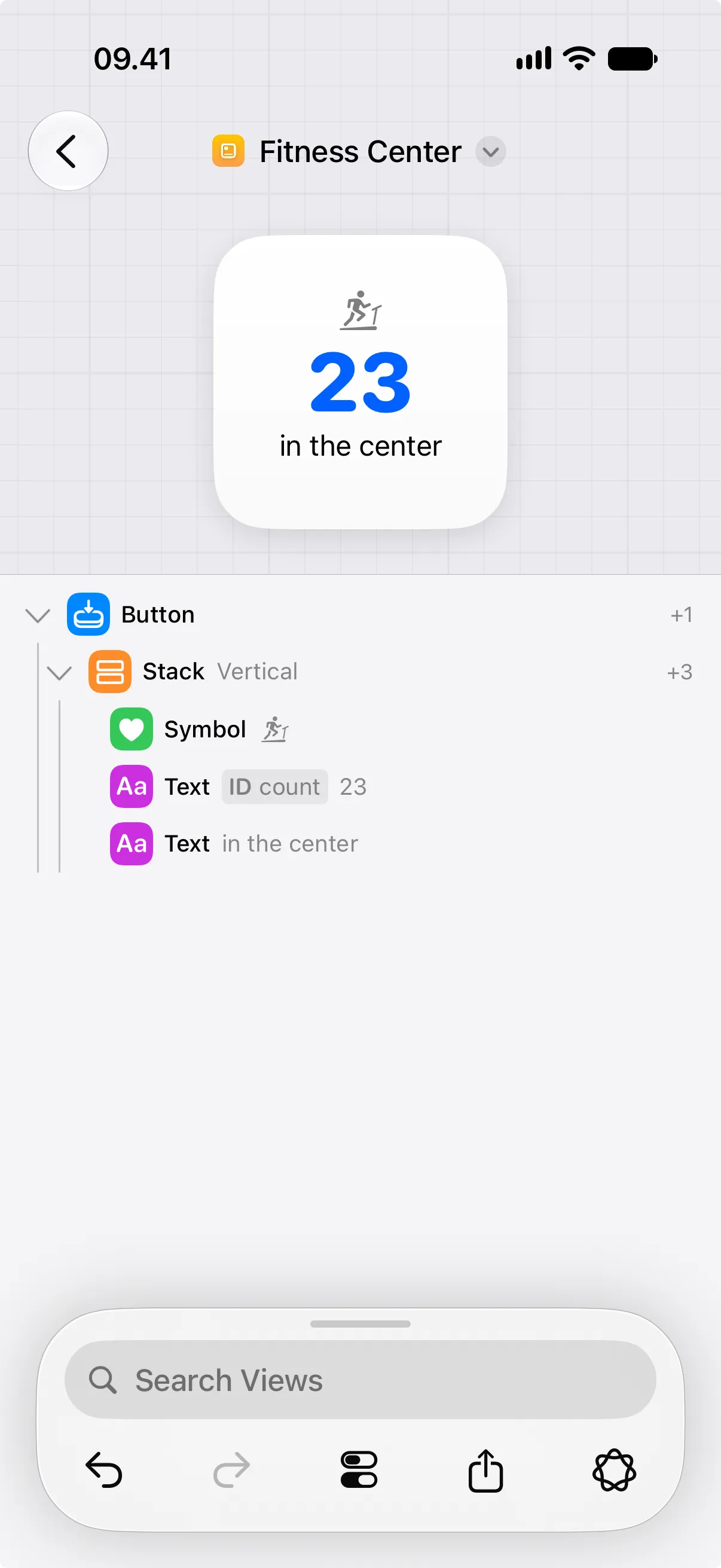
A button view can make part of a Home Screen widget tappable. Buttons can have child views, so the button’s visible label can be a stack, text, symbols, shapes, or the rest of your widget layout.
Use a button when tapping the widget should run a shortcut in the Shortcuts app or open a URL.
This guide focuses on the first case: running a shortcut from a button.
How you set this up depends on the iOS version:
- On iOS 27 or newer, use the Run Shortcut action in Canvases.
- On iOS 26, use the Open URL action with a Shortcuts URL scheme.
iOS 27 or Newer: Use Run Shortcut
Section titled “iOS 27 or Newer: Use Run Shortcut”On iOS 27 or newer, a button can run a shortcut that you choose when configuring the widget on the Home Screen.
- Create the shortcut in the Shortcuts app.
- In Canvases, open the canvas that contains the button.
- Select the button view.
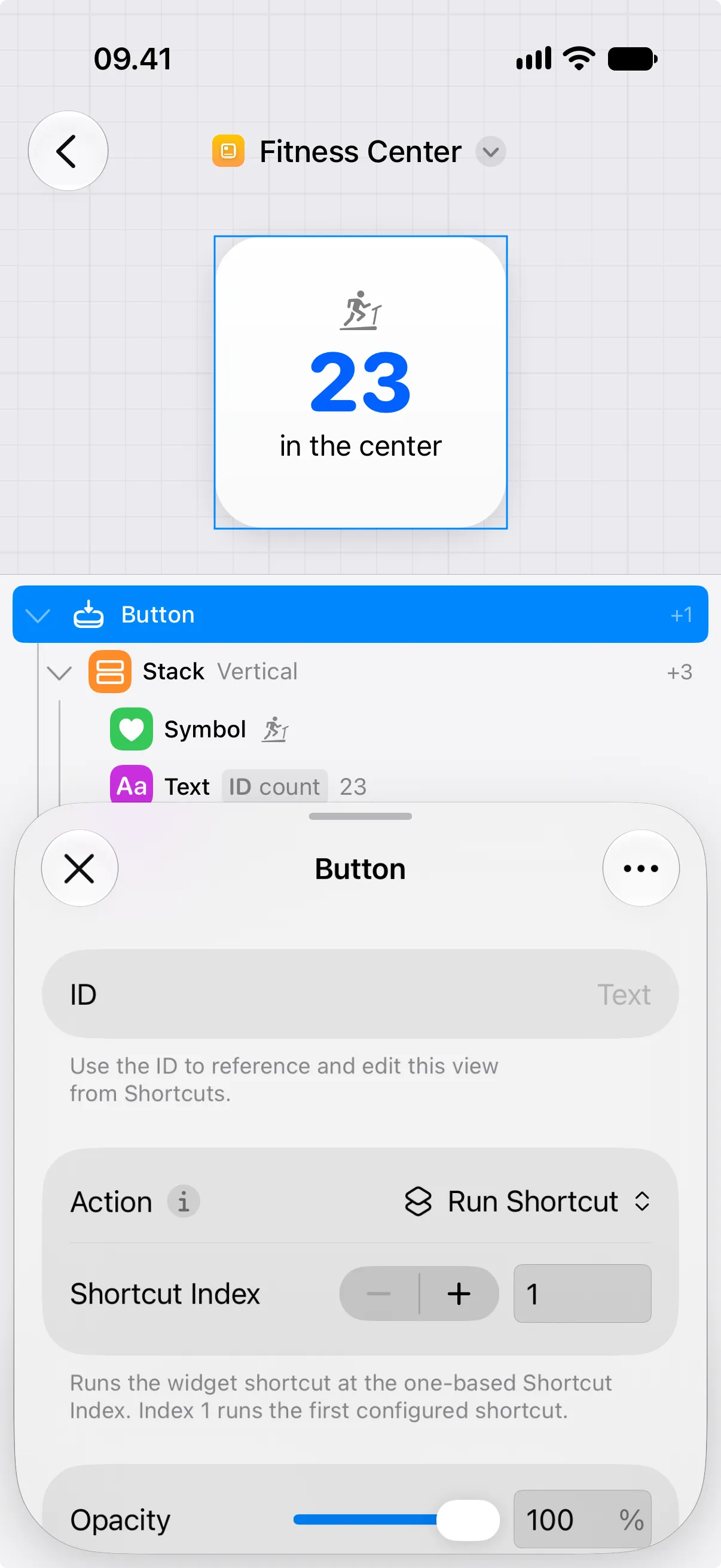
- Set Action to Run Shortcut.
- Set Shortcut Index to the shortcut position this button should run.
- Add the canvas as a Home Screen widget.
- Edit the widget and choose each shortcut for the buttons.
The Shortcut Index starts at 1. Use 1 for the first shortcut in the widget configuration, 2 for the second shortcut, and so on.
iOS 26: Use a Shortcuts URL Scheme
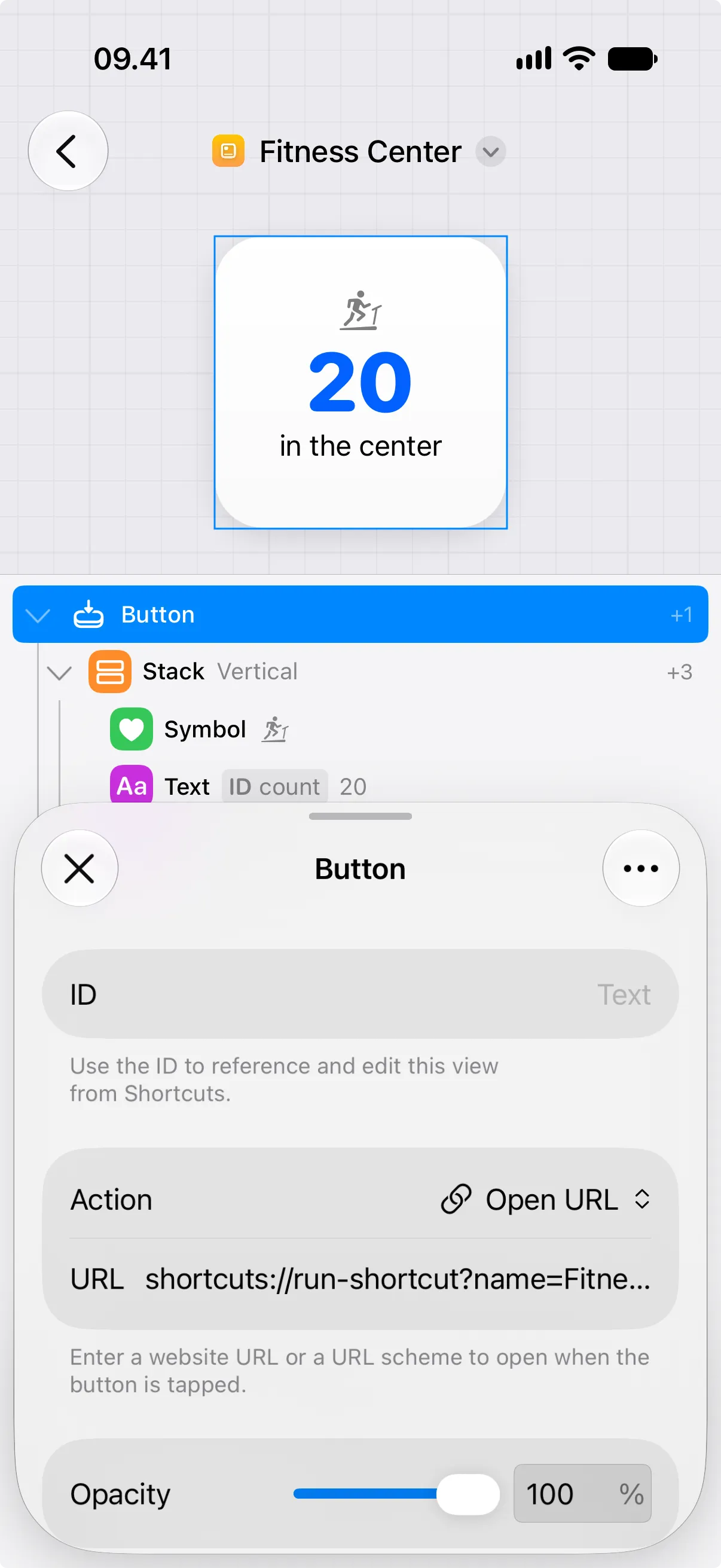
Section titled “iOS 26: Use a Shortcuts URL Scheme”On iOS 26, buttons can only use the Open URL action. To run a shortcut, set the button’s URL to a Shortcuts URL scheme.
For example, this URL runs a shortcut named Fitness Center Check-In:
shortcuts://run-shortcut?name=Fitness%20Center%20Check-InThe shortcut name must match the name in Shortcuts. Spaces and other special characters in the name need to be URL encoded. For more information, including passing input to the shortcut, see Apple’s guide to running a shortcut using a URL scheme.
To set it up:
- Create the shortcut in the Shortcuts app.
- Copy or write the Shortcuts URL scheme for that shortcut.
- In Canvases, open the canvas that contains the button.
- Select the button view.
- Set Action to Open URL.
- Paste the Shortcuts URL scheme into URL.
- Add the canvas as a Home Screen widget.
Make the Whole Widget Tappable
Section titled “Make the Whole Widget Tappable”To make the entire widget run the shortcut, make the button fill the widget and put the visible content inside it.
- Add a button view at the top level of the canvas.
- Move the widget’s visible views inside the button.
- Select the button view.
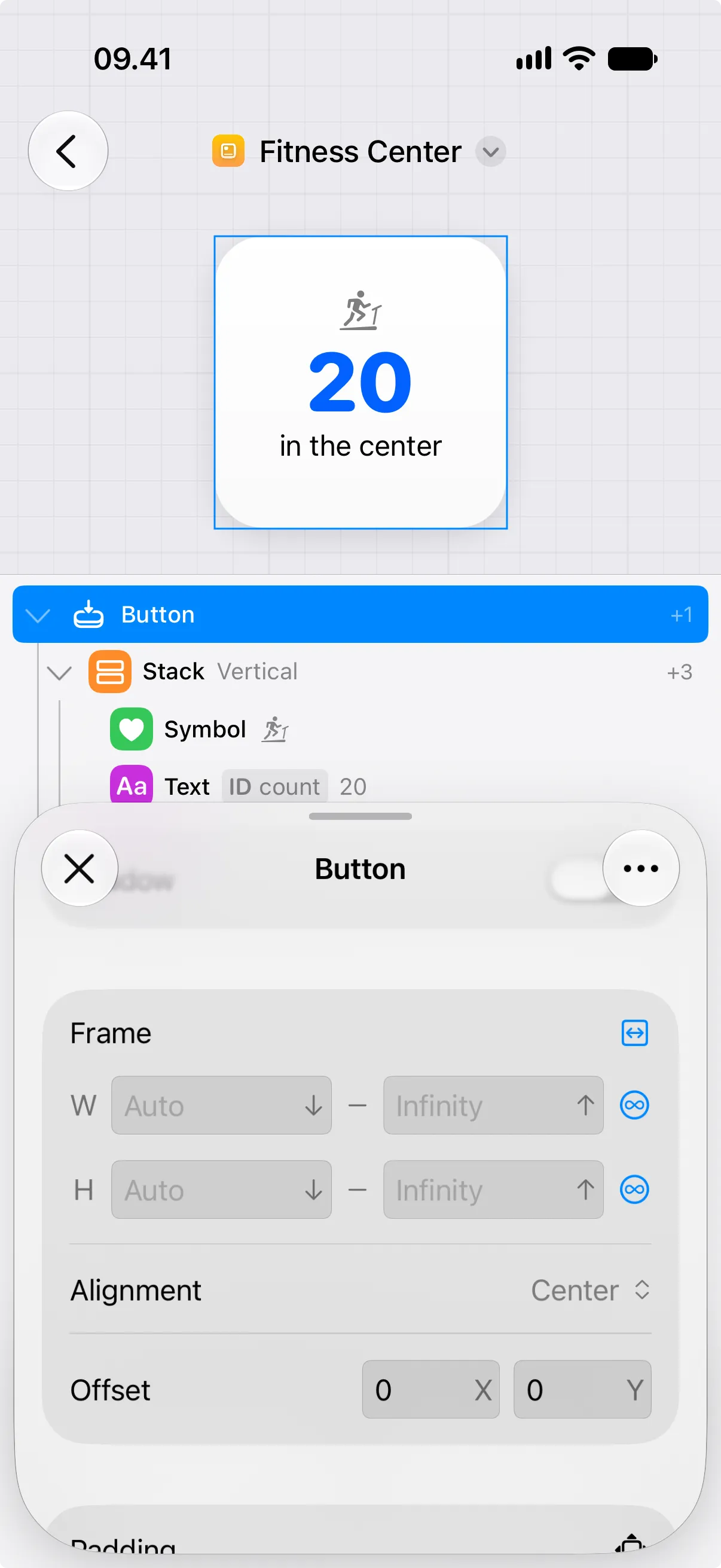
- Set Frame width to Fill.
- Set Frame height to Fill.
- Set the button action using the iOS 27 or iOS 26 steps above.
Fill lets the button take the available width and height. If it does not fill the widget, check that the button is at the top level of the canvas or inside a parent view that also fills the available space.