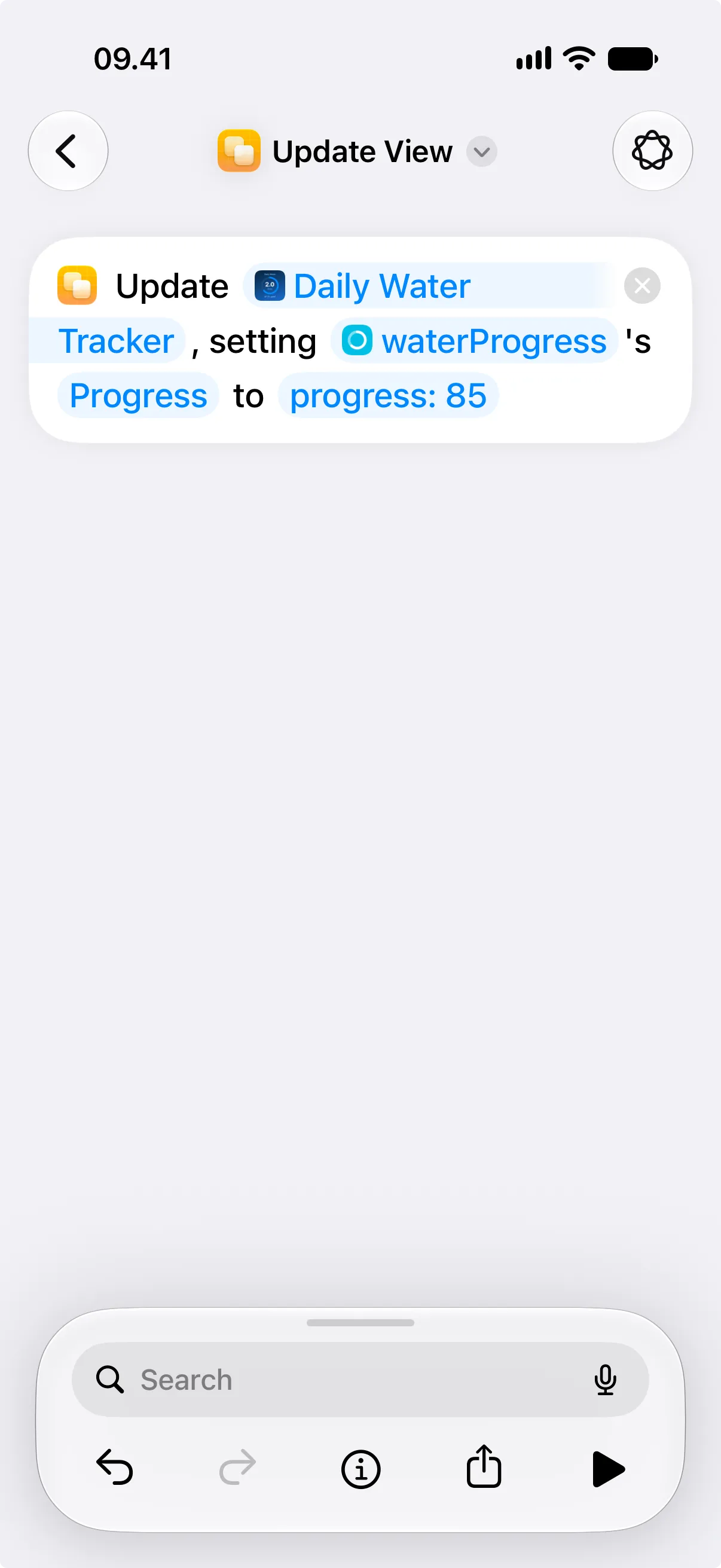
Update View
This action changes one property on one view in a canvas. Choose it when you already know exactly what should change: a text label, progress value, chart data, image, color, layout setting, or button action.
Changes committed to a canvas are eventually synchronized across your devices using CloudKit.
To change a view created from a template, use Update View Created from Template instead.
Parameters
Section titled “Parameters”| Parameter | Description |
|---|---|
| Canvas | The canvas holding the view you want to change. It decides which views you can pick. |
| View | Selects the view to change. Available IDs come from the selected canvas. |
| Property | Chooses the part of the view to update. Available properties depend on the selected view. |
| Value fields | Provide the new value for the selected property. The shown fields depend on the selected property. |
View IDs
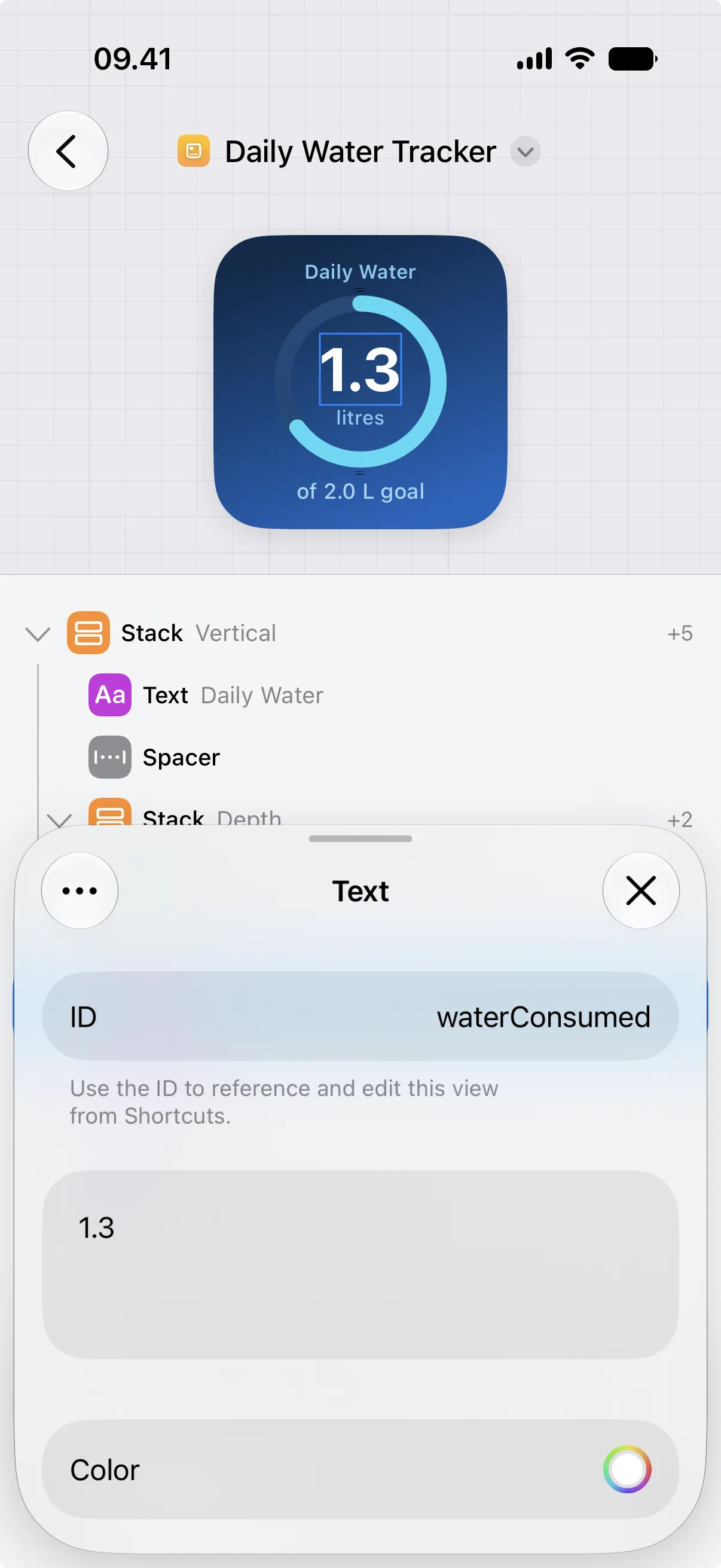
Section titled “View IDs”The view ID comes from the ID field in the Canvases editor. If a shortcut depends on a view, keep that ID stable. Changing the ID in the editor means the shortcut needs to be updated too.
Properties and Value Fields
Section titled “Properties and Value Fields”The Property list changes after you choose a view. For example, a text view shows text-related properties, while a progress view shows progress-related properties.
The value fields also change with the selected property. For example, when you update a color, Shortcuts shows the light and dark hex color fields.
Grids with Templates
Section titled “Grids with Templates”When Template Children is on for a grid, the grid itself is a target for this action as long as it has an ID. Template views, nested template contents, and committed created children are not canvas-level targets for this action.
Commit Children
Section titled “Commit Children”A grid with Template Children on has a Children property in this action:
Update {Canvas}, setting {Grid}'s Children to {List of Created Views}
Committing children:
- replaces the grid’s previous created children
- accepts an empty list, which clears created children
- renders the children in list order
Every view in the list must have been created from a template in that same grid. Mixing in a view created for another grid fails when the shortcut runs and names the offending view.
Committed created children are rendered output. To change them, rerun the shortcut that creates them and set Children again.
See Fill a Grid from Shortcuts for the whole workflow.
Examples
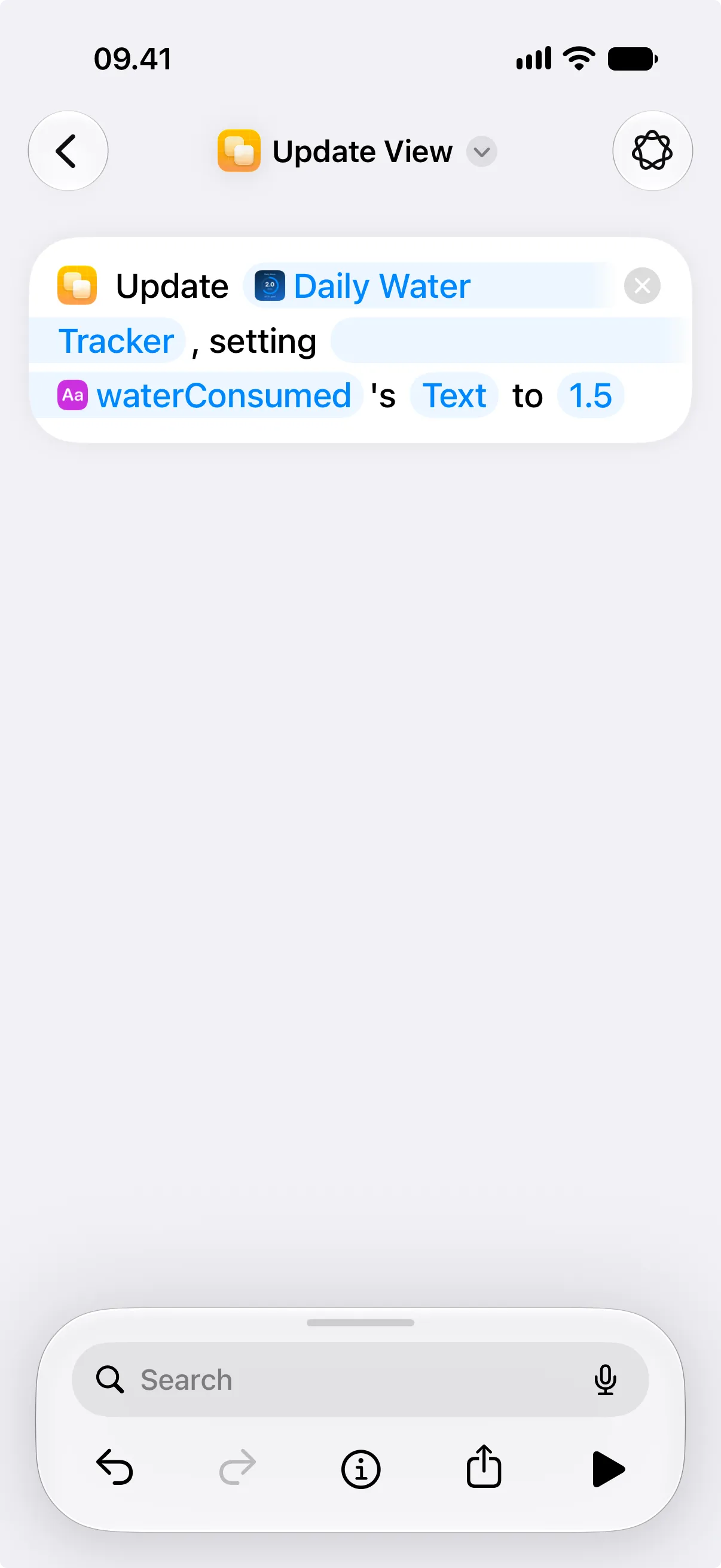
Section titled “Examples”To update text, choose the text view in the View field, set Property to Text, and enter the new text value.
To update progress, choose the progress view in the View field, set Property to Progress, and enter a value from 0 to 100.