Button
A button makes part of a canvas tappable. Add one when a widget should open a URL or run a shortcut from the Home Screen.
A button can contain any other view as its tappable content. A button does not draw a built-in label or shape of its own, so its visible content normally comes from child views or view settings such as background and border.
When a Run Shortcut button has no child views, a configured widget shortcut can supply the visible title.
Open a link when the tap should open a destination. Run a shortcut when the tap should do a small task, such as logging a value or changing a canvas.
The Action setting for choosing what a button does is available on iOS 27 or newer. On iOS 26, buttons can only use the Open URL action.
Open a Link from a Button
Section titled “Open a Link from a Button”A button can open a website URL, such as https://example.com. It can also open another app with a URL scheme, if that app supports one.
For example, a button could open a website with https://example.com, open Mail with mailto:hello@example.com, or open another app with that app’s URL scheme.
To set it up:
- Select the button view.
- Set Action to Open URL.
- Enter the website URL or app URL scheme in URL.
Run a shortcut from a button
Section titled “Run a shortcut from a button”To run a shortcut from a widget button, first create the shortcut, then tell the widget which shortcut each button should use.
To set it up:
- Create the shortcut in the Shortcuts app.
- In Canvases, open the canvas that contains the button.
- Select the button view.
- Set Action to Run Shortcut.
- Set Shortcut Index to the shortcut position the button should run.
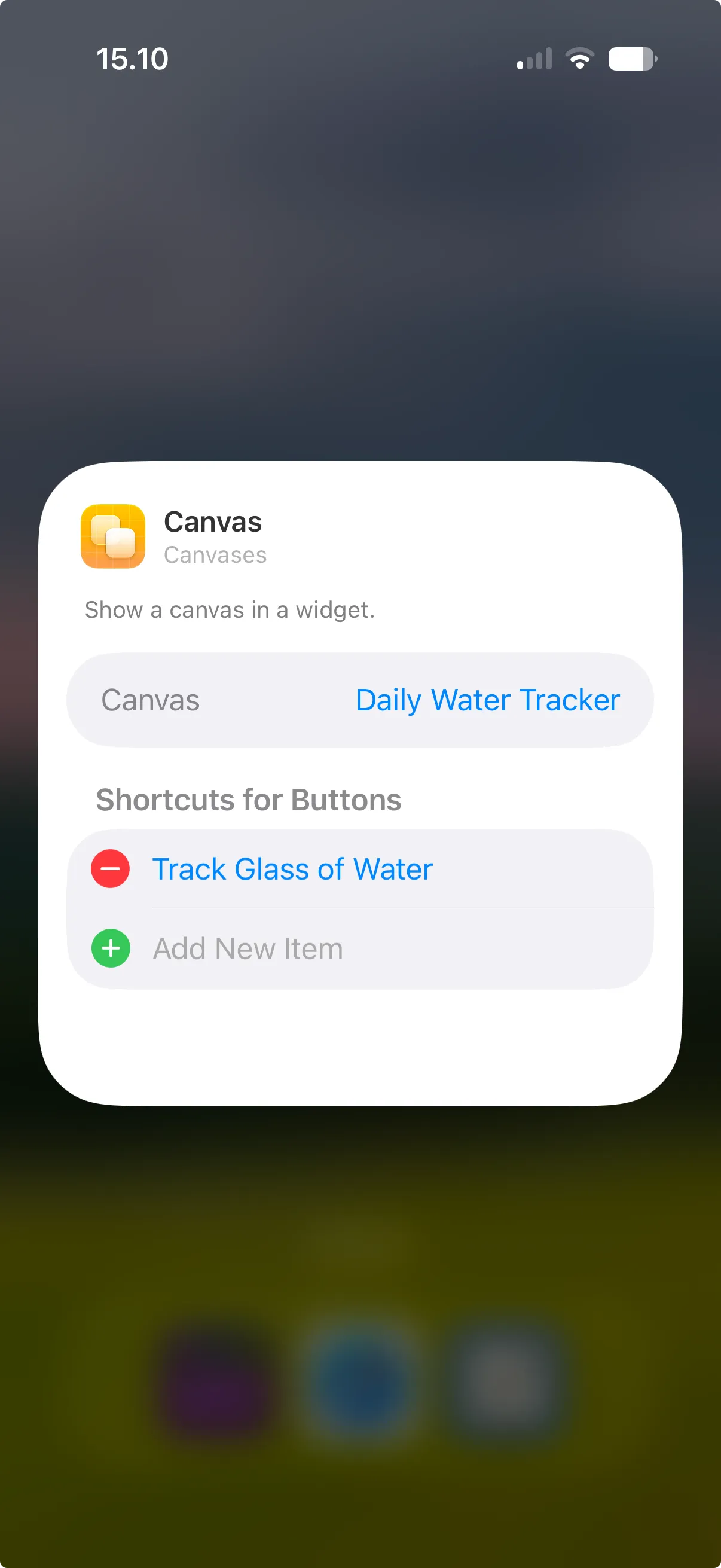
- Add the canvas as a widget, then choose the shortcut when configuring the widget.
The Shortcut Index starts at 1. Use 1 for the first shortcut you choose in the widget configuration, 2 for the second shortcut, and so on.
To run a shortcut from a button on iOS 26, set URL to a Shortcuts URL scheme. For the full workflow, see Run a shortcut from a widget button.
Properties
Section titled “Properties”Identity
Section titled “Identity”| Property | Description |
|---|---|
| ID | Identifies the view so you can find it in the canvas and modify it with Shortcuts actions. Keep it stable for automations. |
| Visible | Hides the view without deleting it. Hidden views are not shown, but they stay in the canvas. |
Action
Section titled “Action”| Property | Description |
|---|---|
| Action | Chooses Open URL or Run Shortcut on iOS 27 or newer. On iOS 26, buttons only support Open URL. |
| URL | Sets the link used when Action is Open URL. On iOS 26, this can be a Shortcuts URL scheme that runs a shortcut. |
| Shortcut Index | Chooses which configured shortcut should run. 1 uses the first configured shortcut, 2 uses the second, and so on. If there is no shortcut at that position, nothing runs. |
Layout
Section titled “Layout”| Property | Description |
|---|---|
| Frame | Controls size and alignment. |
| Offset | Moves the view visually with an offset. |
| Padding | Adds padding. |
Appearance
Section titled “Appearance”| Property | Description |
|---|---|
| Opacity | Sets transparency from 0 to 100. |
| Background | Adds a background. |
| Shadow | Adds a shadow. |
| Clip Shape | Clips the view to a shape. |
| Border | Adds a border. |