
Fill a Grid from Shortcuts
A grid is useful when a widget repeats the same structure many times. A calendar is a good example: each date uses the same cell design, while Shortcuts fills in the real days and highlights.
A template is the cell design that Shortcuts copies. You build the template once in Canvases, then the shortcut creates one copy for each item it needs to show.
Set Up the Grid
Section titled “Set Up the Grid”Select the grid and turn on Template Children. This tells Canvases that the views inside the grid are templates.
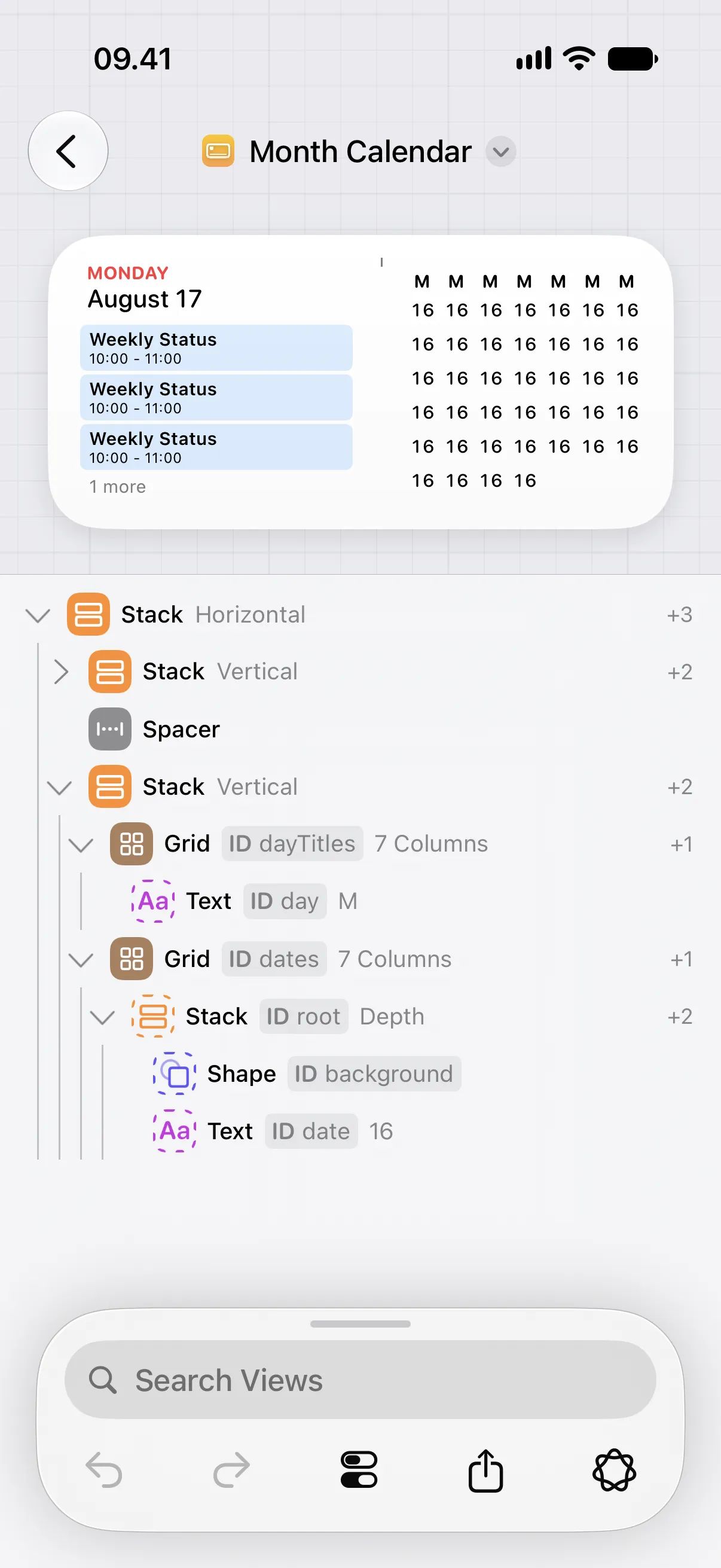
Give the grid an ID, such as dates. Shortcuts uses this ID to find the grid.
Add the view you want to use as the template. For the calendar example, this is one date cell. Give the template an ID,
such as root. This ID makes the template appear in
Create View from Template.
If the shortcut needs to change views inside each copy, give those views IDs too. For example, a calendar cell might have
a text view with the ID date. The shortcut can also update the created cell itself when it needs to highlight today.
Template children use dashed-outline icons in the view list. This helps show which views are templates instead of normal visible children.
Preview the Template
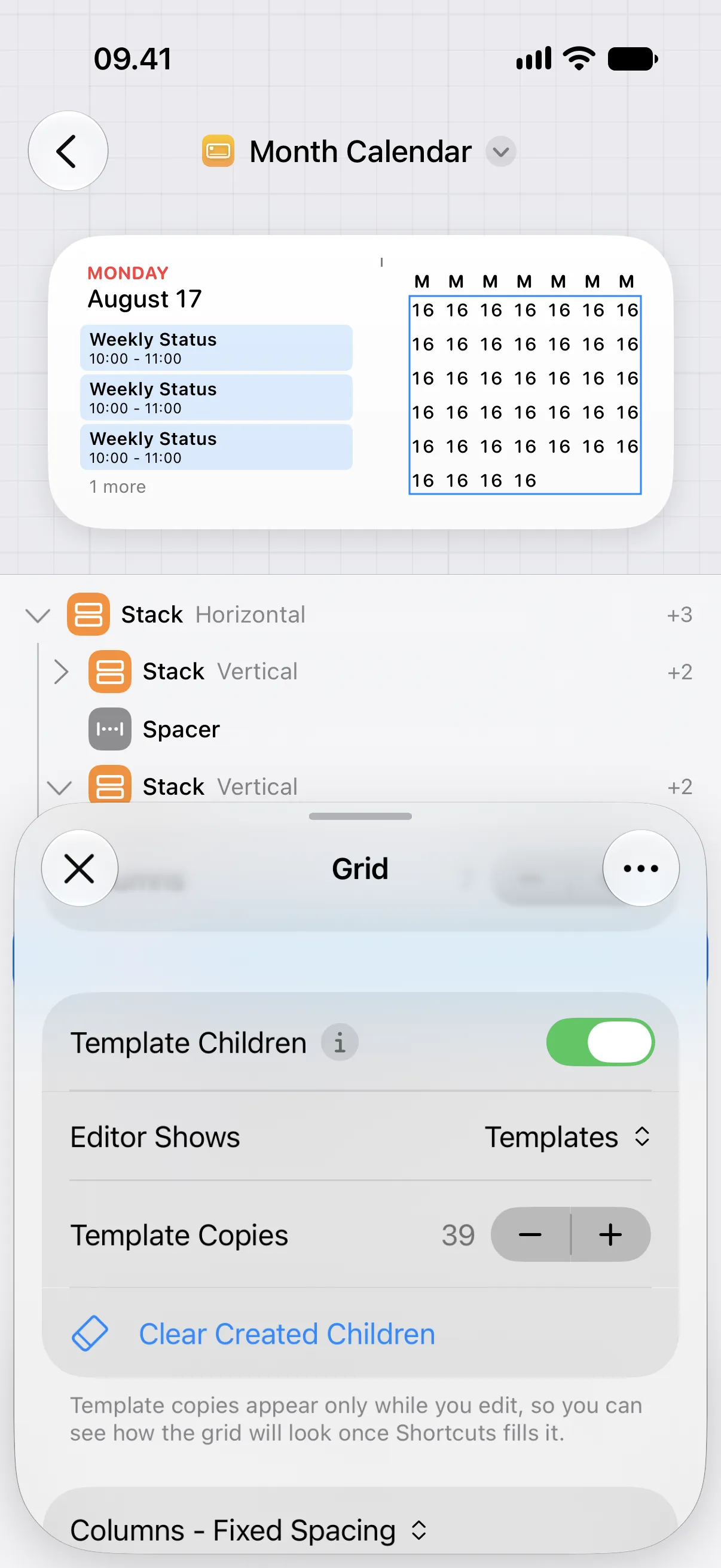
Section titled “Preview the Template”While you design the template, set Editor Shows to Templates. Use Template Copies to preview a filled grid from the template.
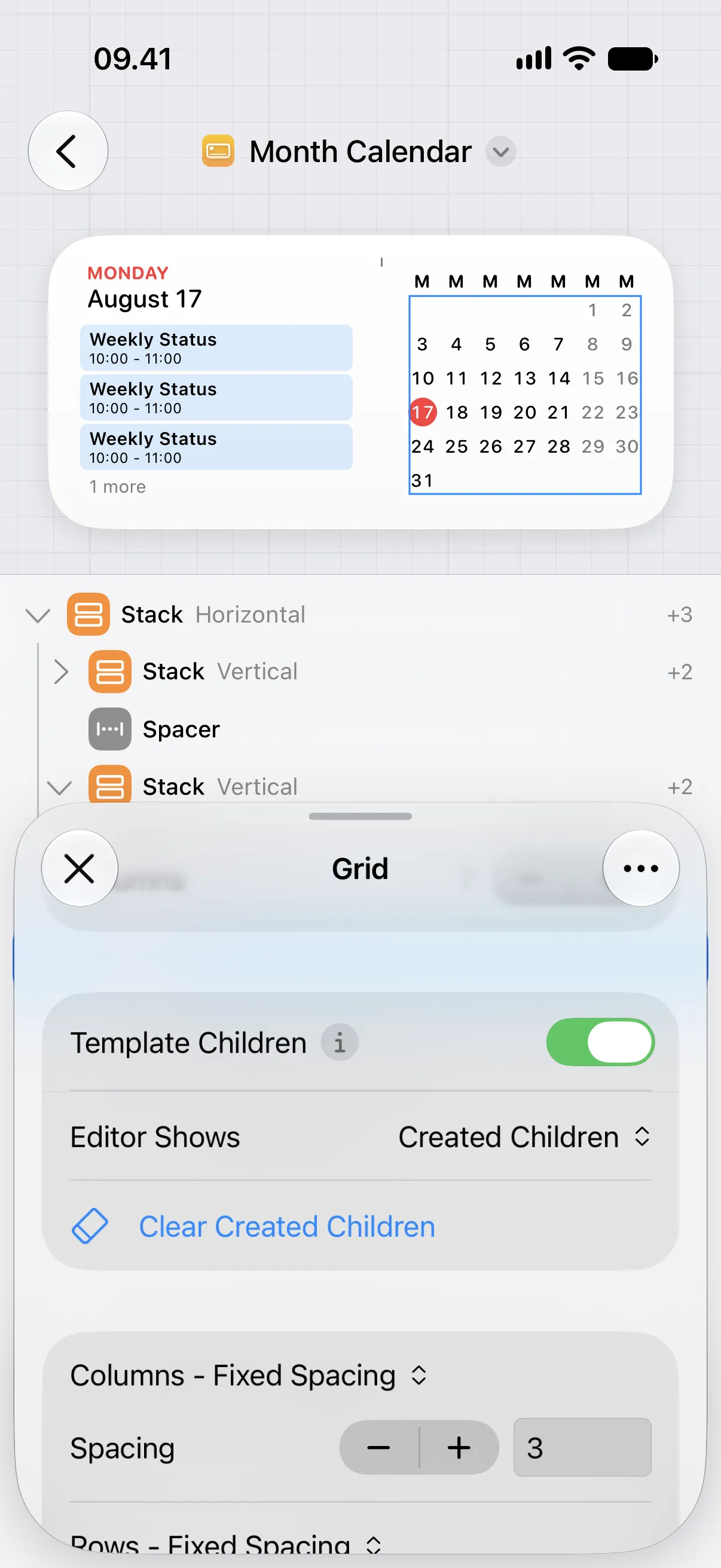
After the shortcut has run, set Editor Shows to Created Children to check the views the shortcut made.
If you edit a template after children have been created, run the shortcut again to recreate those children from the updated template. Editor Shows only changes what you see while editing. Widgets use the created children from the latest shortcut run.
Build in Shortcuts
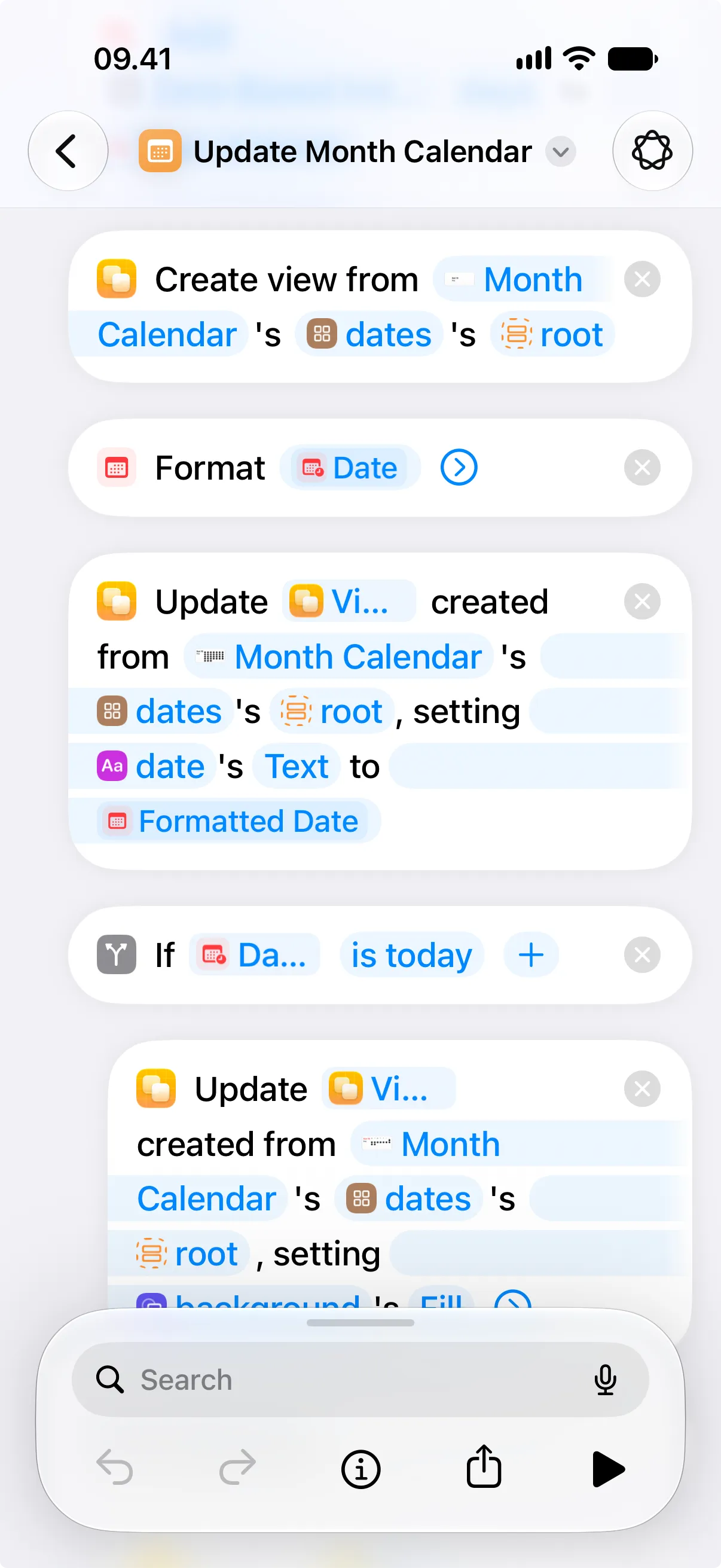
Section titled “Build in Shortcuts”In Shortcuts, create one view for each grid cell, update that view, and then give the grid a list of the created views.
- Add Create View from Template to create a view from the
roottemplate in thedatesgrid. - Add Update View Created from Template to change the created view. For example, update the text view that shows the date number.
- Repeat those actions for each cell the grid needs.
- Put the created views into a list. You can append views to a list yourself in Shortcuts, or you can use a Repeat loop.
- Add Update View for the
datesgrid and set Children to that list.
The Children value must be a list of created views. If you use a Repeat loop, Repeat Results is often the list to use.
Clear the Grid
Section titled “Clear the Grid”To clear the created views in Canvases, use Clear Created Children on the grid. This keeps the template.
To clear the created views from Shortcuts, set the grid’s Children property to an empty list with Update View.